Troubleshooting
Live Sport on IPTV Without Buffering: Your Match-Day Setup
A film that buffers for a second is an annoyance. A match that freezes just as the decisive moment arrives is something people talk about for weeks. Live sport is the hardest job you can give an IPTV setup, and a little preparation removes most of the risk. This is the routine we suggest to customers before the games they care about most.
Why live sport is harder than anything else
- Everyone watches at once. Big games bring a surge of viewers in the same minute, on every network, including the one serving your street.
- It happens at peak time. Evening kick-offs land exactly when household internet use is at its highest.
- Fast motion needs more data. Sport is often shown at higher frame rates, and quick camera movement makes every dip in speed more visible.
- The player has little in hand. With a film, the app can download well ahead of what you are watching. With live TV it can only stay a few seconds ahead, so a short dip shows up on screen.
The day before: test your setup
- Watch a live sport channel at the same time of day as the match. If the game starts at 8 p.m., test at 8 p.m. A morning test proves very little.
- Run a speed test on the streaming device itself, not on your phone. For HD, at least 15 Mbps measured on the TV is comfortable; aim for 25 Mbps or more for 4K.
- Install system and app updates now, so nothing restarts or updates itself during the match.
- Add the channel and a backup to Favorites, so switching takes one click if one source struggles.
- Check the TV guide time. If it is shifted, fix it now so you know exactly when coverage starts.
Choose the right connection
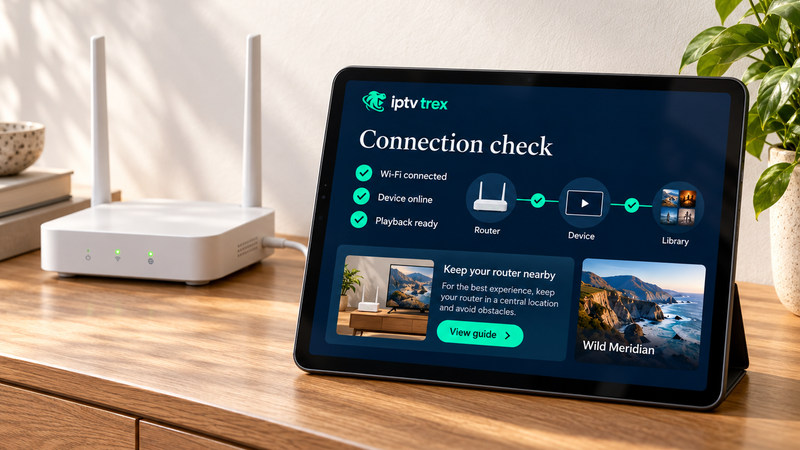
The connection between your router and the TV matters more than any app setting. Here is how the common options compare for live sport:
| Connection | Match-day reliability | Notes |
|---|---|---|
| Ethernet cable | Best | Unaffected by walls or neighbors’ Wi-Fi. Worth a long cable for big games. |
| 5 GHz Wi-Fi, same or next room | Good | Fast, but range is shorter. Keep the router in the open. |
| 2.4 GHz Wi-Fi, or far from the router | Unreliable at peak time | A crowded band. The first thing to change. |
| Powerline adapters | Varies | A good alternative to Wi-Fi in some homes; results depend on the wiring. |
| Phone hotspot | Emergency only | Uses mobile data quickly. Check your allowance first. |
Fire TV Sticks have no Ethernet port, but compatible Ethernet adapters are widely sold and make a real difference on match nights. Android TV boxes and Apple TV 4K models with a port can use a cable directly. Our compatible devices page lists what each device supports.
One hour before kick-off
- Restart the router, wait until its lights settle, then restart the streaming device. This clears stuck connections and frees memory.
- Pause large downloads: game updates, cloud photo backups and computer updates all compete for the same bandwidth.
- If your connection is modest, ask the household to avoid 4K streaming on other screens during the match.
- Close other apps on the streaming device, especially on Fire TV Sticks and older Smart TVs.
- Count the screens. Your plan allows a set number of simultaneous connections, and going over it during a game can stop a stream.
Thirty minutes before: tune in early
Open the channel during the build-up. Any problem then shows up while there is still time to switch channels, plug in a cable or restart, instead of in the opening minutes. If your player lets you adjust the buffer size, a slightly larger buffer can smooth out short dips, at the cost of a second or two of extra delay.
During the match: if the stream stutters
- Switch to your backup channel straight away rather than waiting for the first one to recover.
- Restart the app, not the whole device, if a channel freezes on a single frame.
- Try the other decoder (hardware or software) in the player settings if the picture stutters while the sound carries on.
- Note the time and channel. Reports during live events help us act quickly, so send them on WhatsApp as soon as you can.
Expect a short delay, and avoid spoilers
Every internet stream runs some seconds behind traditional broadcast, because the video is encoded, sent in small chunks and buffered before it plays. That is true of all streaming services and is not a sign of a problem. The practical risk is spoilers: mute score alerts on your phone during the match, and keep group chats closed until the final whistle. If the neighbors watch on cable, you may hear them celebrate first. Our sports channels page explains the delay in more detail.
Honest limits
Preparation fixes problems inside your home. It cannot fix an internet line that is overloaded across your whole area at peak time, and coverage of particular competitions depends on schedules and broadcasting rights that change during the season. If one competition is the main reason you are subscribing, ask us before you order, and test at match time during a free trial. If buffering continues after all of the above, our customer support page walks through the next checks.