
Skip to content

Customer support

Trex IPTV support: fixes first, people always

Most playback problems have a two-minute fix. Find your symptom below and follow the steps; if it is still not right, message us with the details listed further down and we take it from there.

Support specialist with a headset answering messages at a laptop in a bright room

Self-help

Step-by-step fixes for common problems

Work through the steps in order — they go from the quickest to the most involved.

Buffering or freezing

  1. Restart the router (unplug for 30 seconds), then the streaming device.
  2. Move to 5 GHz Wi-Fi or connect an Ethernet cable if you can.
  3. Clear the player app’s cache in your device settings.
  4. Run a speed test on the TV itself; aim for 15 Mbps+ for HD.
  5. Try another channel: if only one buffers, tell us its name and the time.
Login failed or “invalid account”

  1. Re-type the username and password — no spaces before or after.
  2. Check the server address includes http:// and the port number, if one was given.
  3. Make sure your plan has not ended (check the end date in our message).
  4. Close the app on other screens: too many streams at once can block a login.

TV guide empty or wrong times

  1. Check the device date, time and time zone are correct.
  2. In the player, choose “Update EPG” or “Refresh guide”.
  3. Wait two or three minutes; large guides load in the background.
  4. If times are shifted, adjust the EPG time offset in the app settings.

App crashes or is very slow

  1. Free up storage: keep at least 500 MB available on the device.
  2. Update the player app and the device software.
  3. Close background apps, or restart the device completely.
  4. Hide channel groups you never watch to make the list lighter.

No sound or sound out of sync

  1. Switch the audio track in the player menu; some channels carry several.
  2. Change the decoder between hardware and software in the player settings.
  3. If you use a soundbar, set the TV audio output to PCM or Auto.

One channel is missing or offline

  1. Refresh the playlist in the player (often under Settings or a refresh icon).
  2. Search for the channel: it may have moved to another group.
  3. If it still fails, send us the channel name and the time you tried.
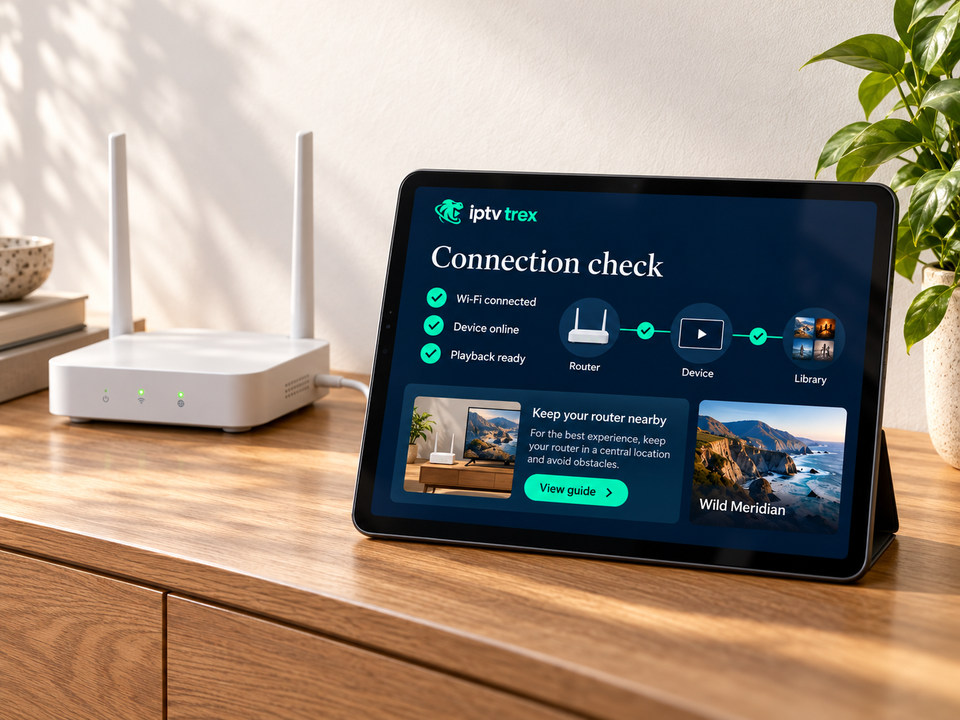
Home router next to a tablet showing a passed connection check

Still stuck?

Send us these five details

With these, we can usually tell in one reply whether the cause is the source, your device or your connection.

  • Device model and player app name
  • A photo or screenshot of the error
  • Channel name and the time it happened
  • Wi-Fi or Ethernet, plus a speed test taken on the device
  • Your username (never your password)

Behind the scenes

What happens after you message us

  1. Read

    We read the whole message

    Including photos. If something is missing, we ask one clear question instead of five.

  2. Diagnose

    We locate the cause

    Source, device or connection. We test the channel on our side when the issue looks source-related.

  3. Fix

    We fix it or guide you

    Either we resolve it on our side, or we send exact steps for your device and app.

  4. Confirm

    We check it is really solved

    A conversation ends when the picture is back, not when a ticket is closed.

Reach us

Talk to the support team

When we reply

Message us any time. Conversations are answered in the order they arrive.

One conversation per issue keeps the history in one place.

Chat on WhatsApp