
Installation guide
How to install Trex IPTV on any device
One guide for every screen: from choosing the right player app to a TV guide that loads and a picture that stays smooth during live sport. Allow about 15 minutes for the first device.
1. Before you start
Have these ready and the rest of the setup is mostly waiting for things to load:
- Your Trex IPTV details from our message: a login (username, password, server URL), a playlist link, or confirmation that your device address is activated.
- The device you will watch on most, connected to the internet and updated.
- Your phone nearby, so you can copy long links instead of typing them with a remote.
2. Choose a player app
The player app is what you see on screen: the channel list, the guide and the video player. Trex IPTV supplies the content; the app displays it. Pick one from your device’s official store whenever possible.
| Device | Where to get the app | Tip |
|---|---|---|
| Android TV / Google TV | Google Play | Widest choice; most apps support all login types. |
| Samsung / LG | TV app store | Some apps charge a small yearly fee to their developer. |
| Fire TV | Amazon Appstore or Downloader | Only use download links we or the app developer confirm. |
| Apple TV / iPhone / iPad | App Store | Check the app supports your login type before buying premium features. |
| Windows / Mac | Developer’s website or app store | A desktop player is more stable than a browser tab. |
Not sure which app to choose? Tell us your device and we will name one that we know works with your login type.
3. Enter your details
Open the player and look for “Add user”, “Add playlist” or “Login”. Then follow the method that matches what you received:
Login (Xtream Codes API)
Type the username, password and server URL. Include http:// and any port number shown (for example :8080). Usernames and passwords are case-sensitive.
Playlist link (M3U)
Paste the complete link into the playlist field. If your app supports it, add the link from your phone or computer to avoid typing errors.
Device address (MAC)
Send us the address your app or box shows, then restart once we confirm. The activation page explains each method with error messages and fixes.
4. Load the TV guide
The guide (EPG) shows what is on now and next. On the first launch it downloads in the background, which can take a few minutes for a large line-up.
- Set the correct date, time and time zone on your device.
- In the player settings, choose “Update EPG” or “Refresh guide”.
- If programs appear shifted by an hour or more, adjust the EPG time offset.
5. Organize your channels
Five minutes here saves hours of scrolling later. Add your everyday channels to Favorites, hide groups you will never watch and, if children use the TV, set a parental PIN on adult categories. Most apps keep these settings even after you refresh the playlist.
6. Tune your network
The connection inside your home matters more than the speed on your bill. These steps solve most buffering before it starts:
- Use Ethernet for the main TV if a cable can reach it.
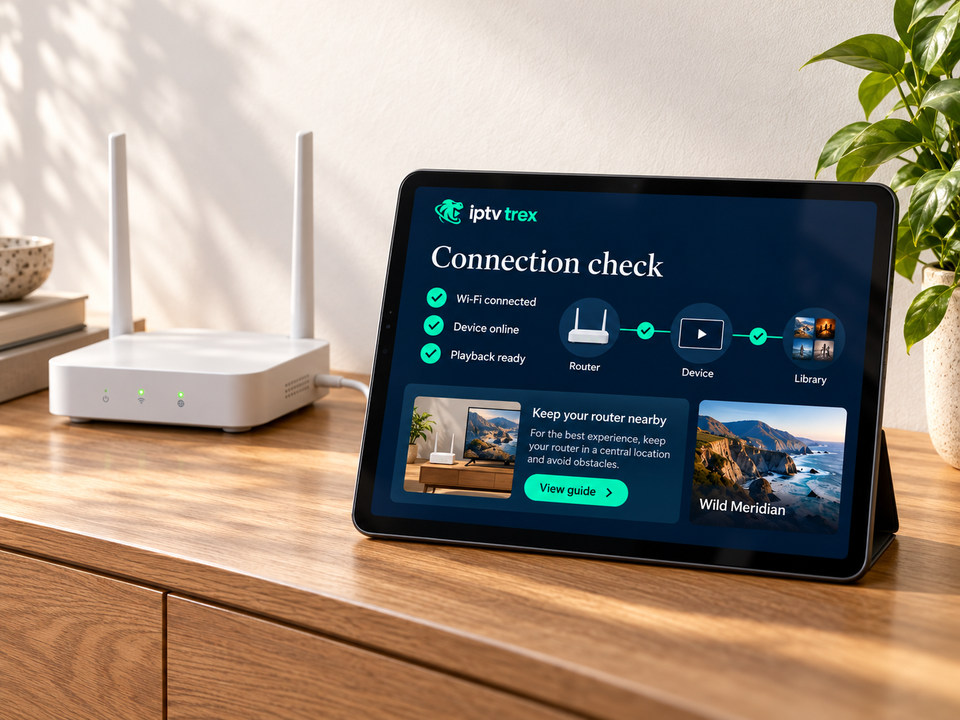
- On Wi-Fi, prefer the 5 GHz network and keep the router out of cabinets.
- Measure speed on the TV in the evening: 15 Mbps for HD, 25 Mbps+ for 4K.
- Restart the router weekly if it runs constantly.
7. Device-specific notes
Each device family has its own quirks. These guides go into detail:
- Smart TV: Samsung, LG, Android TV and Google TV
- Fire TV Stick and Fire TV Cube
- Android phones, tablets and TV boxes
- Apple TV, iPhone and iPad
On Windows and Mac, install a desktop player from its developer’s website and use the login or playlist method above. Set-top boxes use the device address method with a portal URL that we send you.
8. Quick fixes
- Login refused: check for spaces, letter case and the port in the server URL.
- Guide empty: fix the time zone, then update the EPG.
- Buffering: restart router and device, switch to 5 GHz or Ethernet, clear the app cache.
- One channel fails: refresh the playlist, then tell us the channel and time.
More detailed steps are on the customer support page.
Prefer a person to walk you through it?
Send your device and app on WhatsApp — we reply with the exact steps.