Devices
Best IPTV Player Apps for Fire TV, Android TV and Apple TV
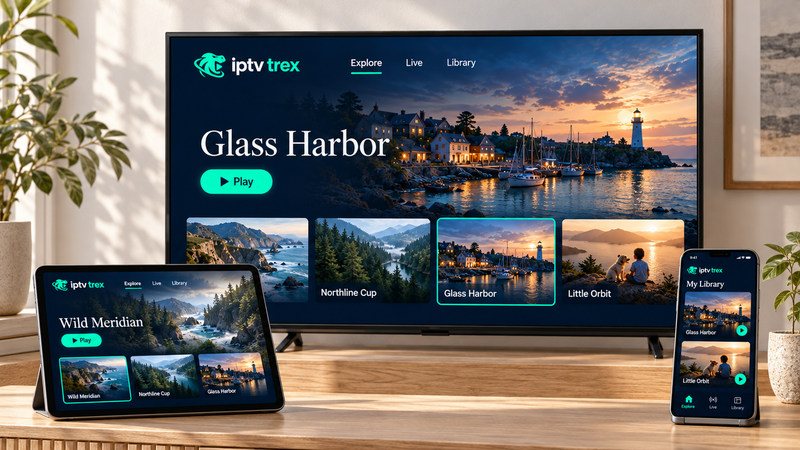
An IPTV subscription gives you channels, a film library and a TV guide. The player app is what turns all of that into something you can browse with a remote. The same subscription can feel fast and tidy in one app and clumsy in another, so the choice deserves a few minutes. This guide is neutral: we have no partnership with any app developer and earn nothing if you install one.
Is there a “Trex IPTV app”?
Trex IPTV is a subscription, not an app. You watch it in a player app of your choice. If you come across a download called “Trex IPTV player” or something similar on a third-party download site, do not assume it comes from us. Install players only from your device’s official app store, or from a link we confirm on WhatsApp.
What to look for in a player
- Login types. Most players accept an Xtream login (username, password and server address) or an M3U playlist link. Xtream usually gives the tidiest result. Our activation page explains each type.
- A proper TV guide. A grid guide with now-and-next information makes live TV far easier to use.
- Favorites and search. You will use both every day.
- Decoder and buffer settings. Useful when a channel stutters on one particular device.
- Regular updates. An app that has not been updated in years may break after a system update.
- Clear pricing. Many players are free to try and charge for premium features. That payment goes to the app developer, not to your IPTV provider.
App stores change often. Apps are added, renamed and removed, and features and prices move with them. Treat the names below as a starting point and check the current store listing on your own device before you rely on one.
Android TV and Google TV
Android TV and Google TV devices have the widest choice, mostly straight from Google Play. Commonly used players include:
- TiviMate: built around a TV-style grid guide with a polished interface. A paid premium tier unlocks extras such as multiple playlists.
- OTT Navigator: very configurable, with a good guide and plenty of playback options. It takes a little longer to learn.
- IPTV Smarters Pro: a simple layout that separates live TV, films and series, which suits households that mostly use the library.
- Kodi with the PVR IPTV Simple Client add-on: free and powerful, but the setup is more technical. Best for people who already use Kodi.
Our IPTV on Android guide covers installation and the settings worth changing on phones, tablets and TV boxes.
Amazon Fire TV
Most Fire TV Sticks run Fire OS, which is based on Android, but the Amazon Appstore carries fewer IPTV players than Google Play. There are two routes:
- Check the Appstore first. If a player you trust is listed there, use that version. It installs in one click and updates automatically.
- Otherwise, use the Downloader app. Install Downloader from the Appstore, allow it (and only it) to install unknown apps, and download the player from the developer’s own website. TiviMate and IPTV Smarters Pro are both widely installed this way.
Fire TV Sticks have limited storage, so install one player rather than three, and remove apps you no longer use. One caution: starting with the Fire TV Stick 4K Select, Amazon is moving its new sticks to a different operating system, Vega OS, which only installs apps from the Appstore. On those devices the Downloader route does not work, so check which system a model runs before you buy it or plan around a particular player. Our Fire TV Stick guide walks through the safe setup step by step.
Apple TV
Apple TV only installs apps from the App Store, so there is no sideloading to worry about. The trade-off is a smaller selection, and several of the better players are paid apps or offer a premium tier. Commonly used options include:
- iPlayTV: designed around the Apple TV remote, with a clean channel guide.
- IPTVX: a polished interface that also runs on iPhone, iPad and Mac.
- UHF: accepts playlists and logins and includes a guide view; free to start with optional premium features.
- GSE Smart IPTV: long-running and flexible, though its interface feels busier than the others.
See IPTV on Apple TV for setup on Apple TV 4K, iPhone and iPad.
Platforms at a glance
| Platform | Where apps come from | Watch out for |
|---|---|---|
| Android TV / Google TV | Google Play (widest choice) | Unofficial “modded” versions of paid apps |
| Fire TV (Fire OS) | Amazon Appstore, or Downloader (good choice) | Limited storage; download only from the developer’s site |
| Fire TV (Vega OS) | Amazon Appstore only (limited choice) | No Downloader or sideloaded apps |
| Apple TV | App Store only (moderate choice) | More paid apps |
| Samsung / LG TVs | The TV’s own store (limited choice) | Some apps charge a yearly activation fee |
Apps to avoid
- Modified or “cracked” versions of paid players. They can carry malware, they stop working without warning and they often break after updates.
- Players that come with their own channel lists. A player should be empty until you add your own details.
- Any app that asks for card details to “activate IPTV”. If you pay for a player, pay through the official app store.
How to choose
Start with a free or free-to-try player and use it for a few evenings. If you like it, pay for the premium features you will actually use. A quick tip: VLC is handy for checking that a playlist link works, but it has no proper TV guide, so it is a test tool rather than a daily player. If an app feels slow or confusing during your first week, tell us your device and we will suggest an alternative that suits it.