Troubleshooting
IPTV Buffering? Check Your Home Network in 10 Minutes
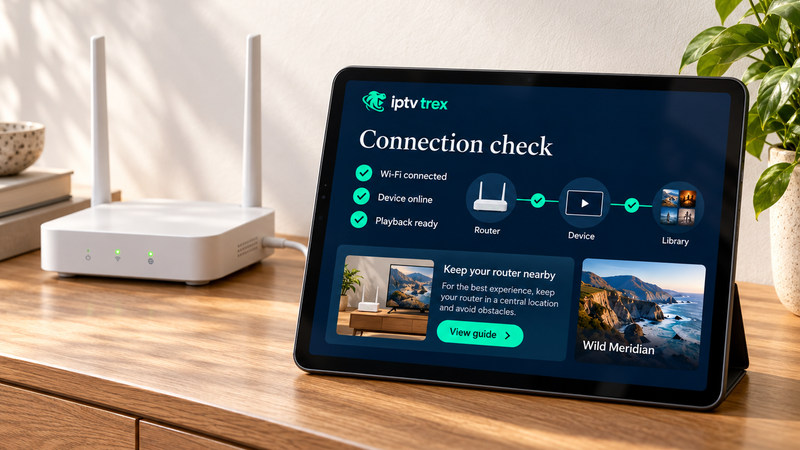
Buffering has three possible causes: the source, the device, or the connection between them. On our help desk, the connection inside the home is the most common culprit, and the easiest to fix. This check takes about ten minutes and needs no technical background.
1. Find out where the problem is
- One channel buffers, others are fine: likely the source. Tell us the channel name and time.
- Everything buffers on one device, but plays on your phone: likely the device or its connection.
- Everything buffers everywhere, mostly in the evening: likely your internet line at peak time.
2. Test speed on the device itself
A speed test on your phone next to the router says little about the TV in another room. Run the test on the streaming device (most app stores have a free speed test app) and do it in the evening. For comfortable viewing, aim for at least 15 Mbps for HD and 25 Mbps for 4K, measured on the TV.
3. Fix Wi-Fi placement before buying anything
- Keep the router out of cabinets and away from the TV’s back panel and metal shelves.
- Use the 5 GHz network if the device is in the same or next room; 2.4 GHz travels further but is slower and more crowded.
- If an Ethernet cable can reach the TV, use it. It is the single biggest improvement for live sport.
- Large homes benefit from a mesh system rather than a range extender.
4. Restart in the right order
Unplug the router for 30 seconds, plug it back in and wait until all lights settle. Then restart the streaming device. This clears stuck connections on both sides. Do it once a week if your router runs constantly.
5. Clean up the device
- Close apps running in the background, especially on Fire TV Sticks and older Smart TVs.
- Clear the player app’s cache (Settings → Applications → your player → Clear cache). Do not clear data unless you are ready to re-enter your login.
- Free up storage: devices with less than 500 MB free often stutter.
- Check for system updates.
6. Adjust the player
Most players let you change the video decoder (hardware vs software) and buffer size. If playback freezes, try switching the decoder. A slightly larger buffer can smooth out evening dips at the cost of a second or two of extra delay.
7. Know when it is not you
Some internet providers slow down video traffic at busy times. If speed tests are fine but streams still struggle every evening, tell us: we will check the source and suggest the next step. Our customer support page has more fixes, and the installation guide covers network setup in detail.
What to send us if buffering continues
- Device model and app name
- A speed test result taken on the device
- Which channels buffer, and at what time
- Whether you use Wi-Fi or Ethernet
With those four details we can usually tell you within one reply whether the fix is on our side or yours.